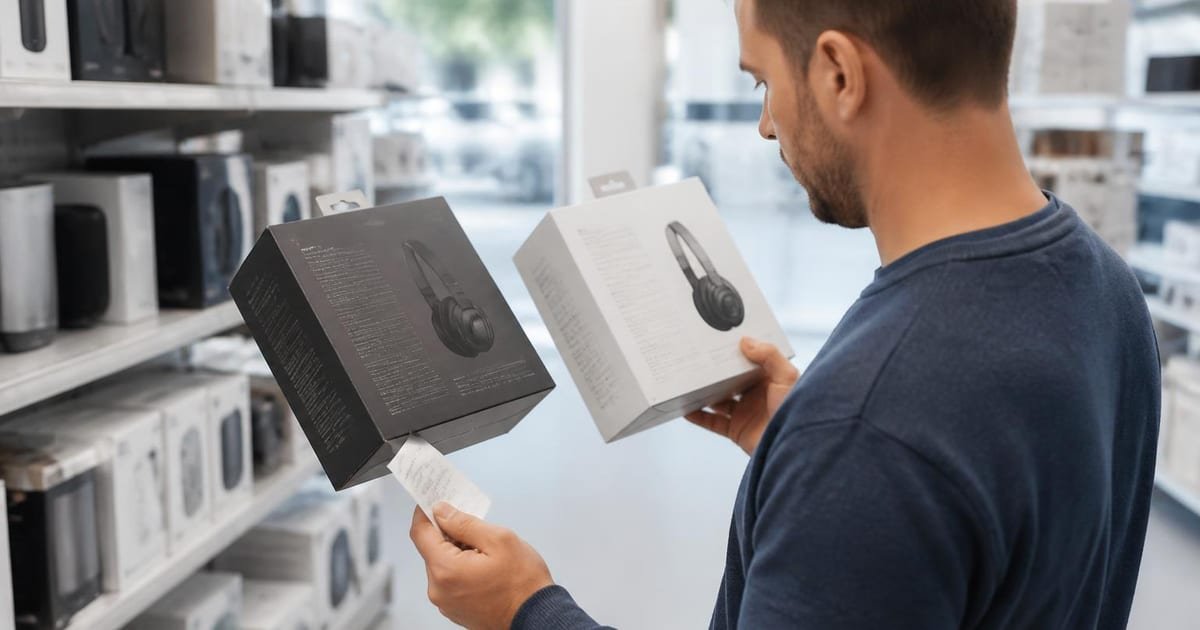
Newegg how to build a pc – 7 steps under $1,000 (home users)
Build a solid midrange PC using Newegg in seven clear steps and keep parts under $1,000. Includes a comparison table, compatibility checks and a step plan.
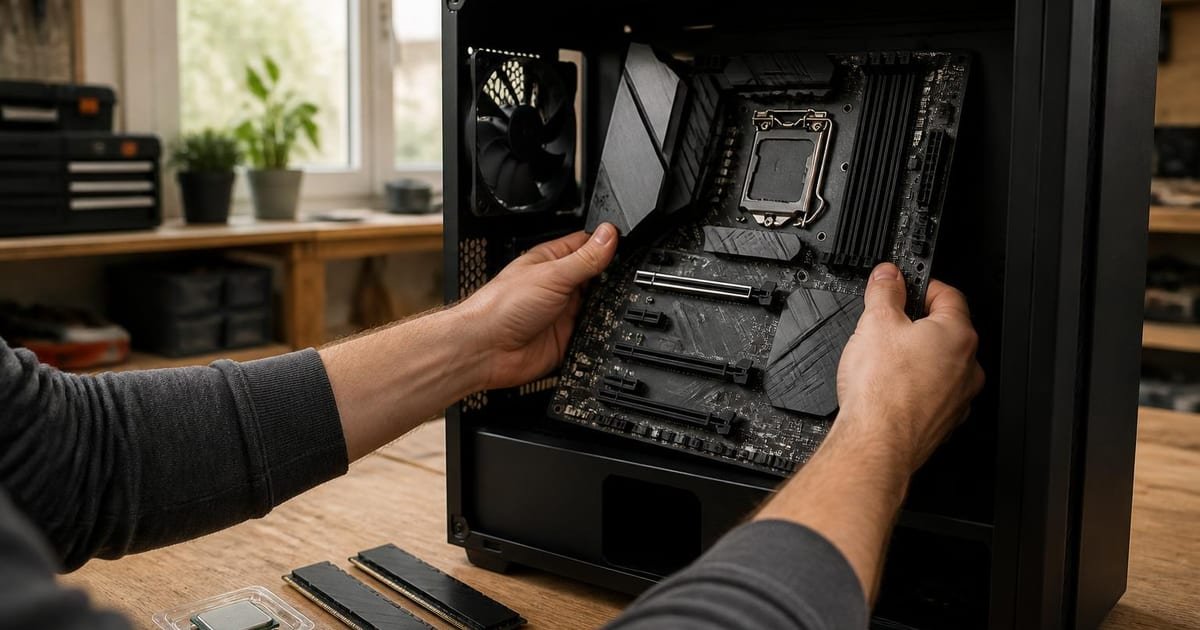
Yes. You can use Newegg to buy every part and assemble a home PC in seven steps and still aim for a solid midrange build under $1,000, and Newegg’s return policy gives a 30-day window for most items which helps if a part arrives incompatible (Newegg return policy). Below you get a short decision checklist, a comparison table of buying options, scenario rules, and a step-by-step assembly plan.
In short – key takeaways:
Parts list first – pick CPU, motherboard, RAM, GPU, storage, PSU, and case; balance CPU and GPU for your use case.
Budget rule – aim for CPU + GPU ≤ 60% of total budget to keep a strong gaming or creative PC under $1,000.
Check socket and RAM type – verify CPU socket and DDR generation on vendor pages; mismatched RAM or socket causes returns.
Use Newegg for fast stock and marketplace variety; compare Newegg CPU shopping for midrange builds against prebuilt prices.
Keep receipts and note serials – Newegg’s 30-day returns and seller policies make swaps feasible if you keep packaging and order numbers (Newegg return policy).
Which parts to prioritize for a $1,000 build?
Choose parts by role and price impact. For most home users, the CPU and GPU matter most for performance; allocate about $600 of a $1,000 budget to them combined. For storage, a 1 TB NVMe SSD commonly balances speed and price. For power, a 650 W 80 Plus Bronze PSU suits single-GPU midrange builds. Check Newegg listings for exact model specs and socket names to confirm compatibility with the motherboard. If you prefer fewer choices and faster setup, compare a Newegg prebuilt desktop price against a parts subtotal before buying individual components.
Quick comparison – buy parts, buy a bundle, or buy a prebuilt?
Option | Who it suits | Key number | Main drawback |
|---|---|---|---|
Individual parts (CPU, mobo, RAM, GPU, SSD, PSU, case) | Enthusiasts or anyone wanting upgrades | Typical parts subtotal target $900–$1,000 for midrange builds | Time for research and higher risk of compatibility errors |
Newegg combo bundles (CPU + mobo + cooler) | Builders who want matched components | Savings often 5%–15% vs separate items on bundle listings | Bundles limit exact model choice for future upgrades |
Prebuilt desktops on Newegg | Users who want immediate out-of-box use | Compare desktop price vs parts subtotal; often $900–$1,200 for midrange | Less upgrade flexibility; sometimes higher markup |
Note the bundle row links to Newegg bundle listings for matched parts and compatibility checks Newegg CPU and motherboard bundles. One honest limitation of the Newegg Affiliate Program is that some marketplace sellers have separate return terms; an alternative is buying from a local retailer or direct manufacturer warranty.
How to verify compatibility on Newegg listings?
Open each part page and read the spec table. Confirm CPU socket name matches motherboard socket and that the motherboard lists the RAM type you intend to buy (for example DDR5 or DDR4). Check the motherboard form factor – ATX, mATX, or ITX – against the case dimensions. Look at PSU recommended wattage in GPU listings; a midrange GPU might list 550 W minimum. Save each Newegg product page link and note model numbers in a single shopping cart so you can review totals and check for overlap in return rules between products and marketplace sellers.
How to compare sellers and price vs time?
Sort by “Best Match” and then filter by Newegg or Newegg Marketplace sellers. Use the product’s historical price section on Newegg pages when available, and factor shipping and estimated delivery. If a part is listed as "sold by Newegg" the return path is usually simpler; marketplace sellers may have restocking fees or different return windows. If you need parts fast, filter by "Same-day" or "Ship from US" options on Newegg product filters. Keep a one-line cost comparison: parts subtotal, shipping, tax, plus any promotional mail-in rebates.
Step-by-step assembly plan (seven steps)
Gather tools and workspace – Phillips #2 screwdriver, anti-static wrist strap, small bowl for screws.
Prepare parts and paperwork – confirm CPU socket and RAM type from Newegg pages, keep boxes and order numbers.
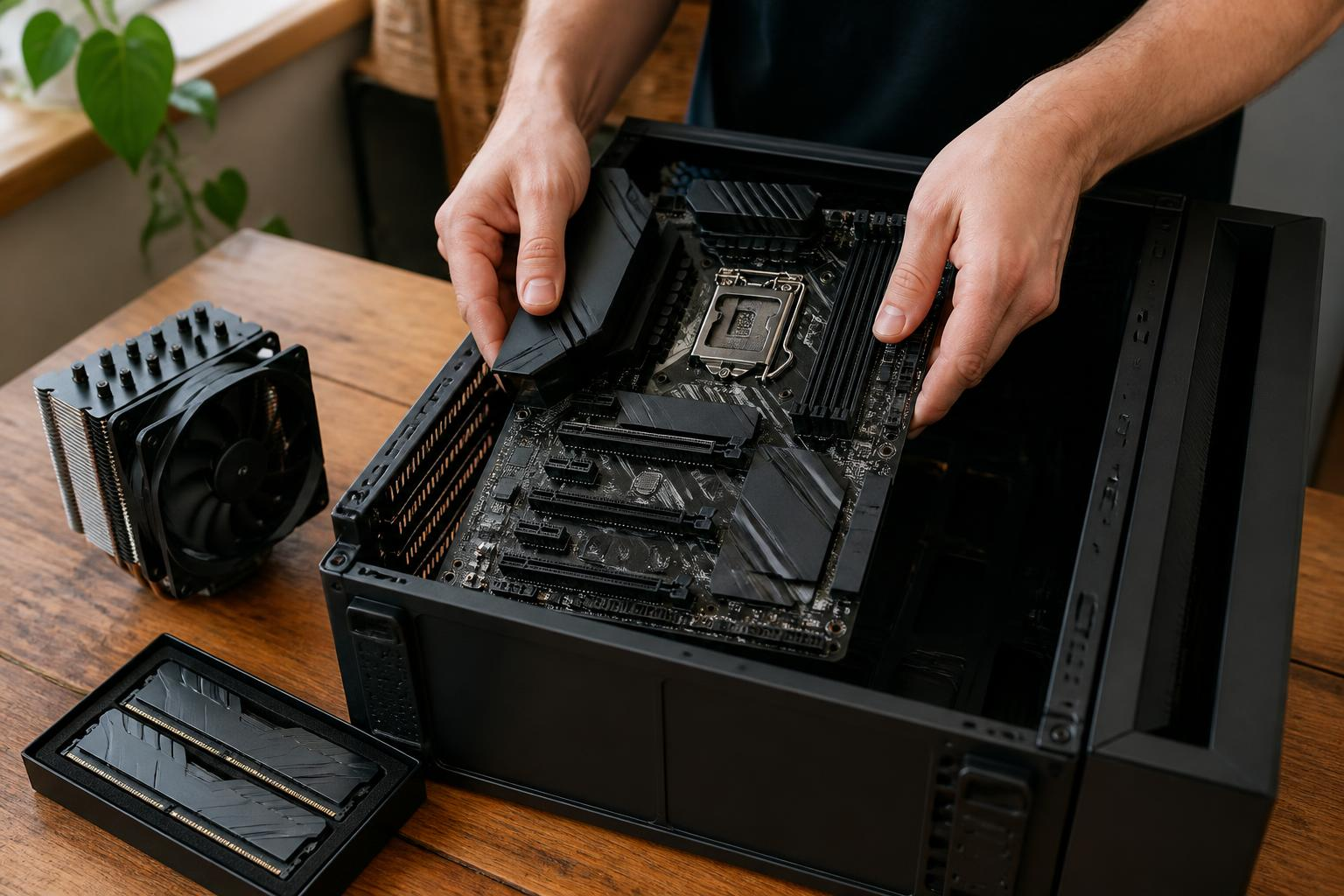
Install CPU and cooler on the motherboard outside the case to avoid cramped angles. Mount RAM sticks in recommended slots.
Install motherboard into case using standoffs and the I/O shield. Route front-panel connectors later.
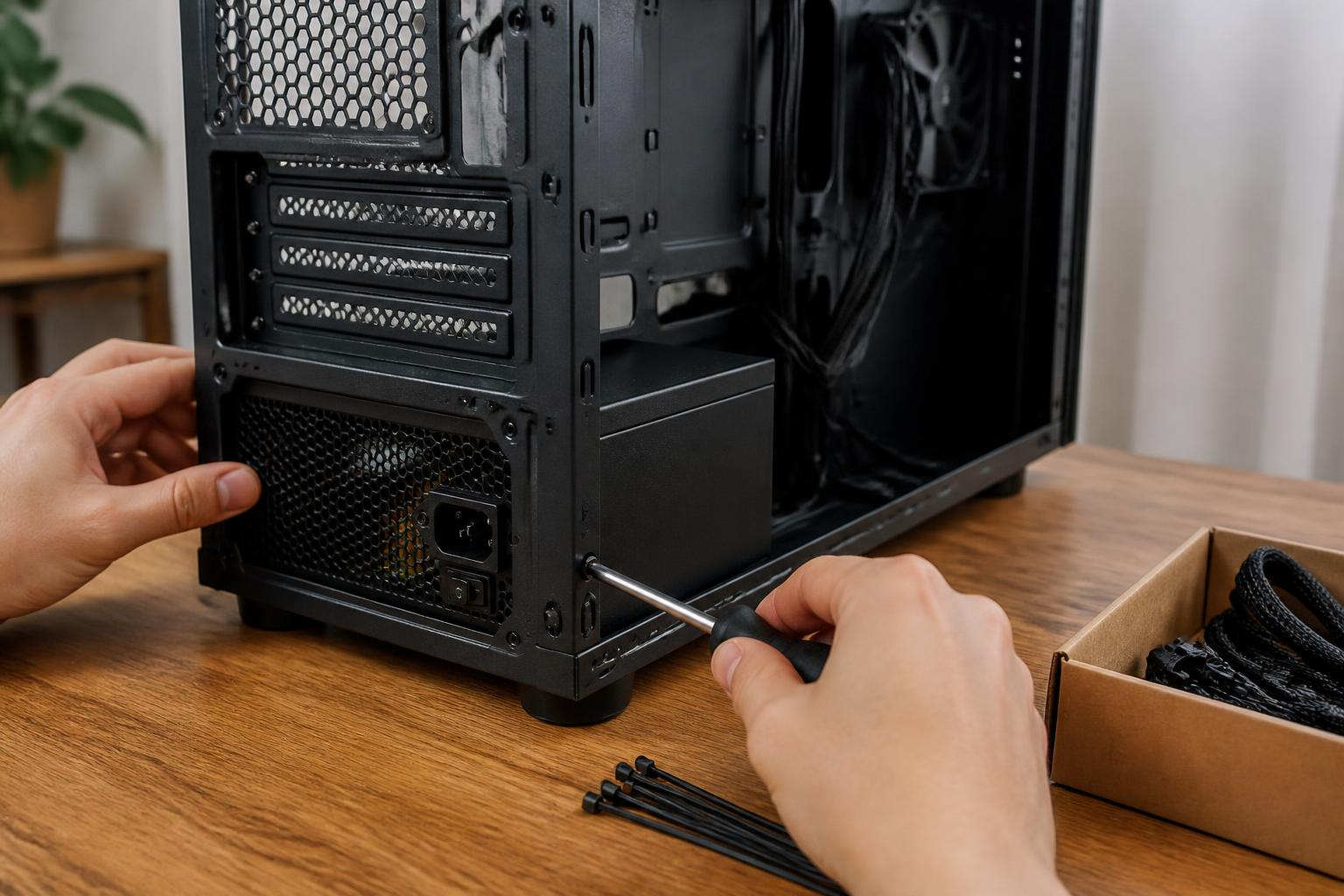
Mount PSU and connect main 24-pin and CPU 8-pin power. Secure SSD and GPU, then connect SATA or NVMe per manual.
First boot and BIOS check – confirm BIOS recognizes CPU, RAM speed and NVMe drive; enable XMP only if RAM and board support it.
Install OS and drivers – download chipset and GPU drivers from manufacturer pages; keep Newegg receipts and serials ready if you must return a part within 30 days.
What mistakes do home builders make on Newegg and how to avoid them?
Common errors include buying incompatible RAM speed for the motherboard, choosing a GPU that exceeds your PSU wattage, and ignoring cooler clearance with the chosen case. Avoid these by checking the motherboard QVL (Qualified Vendor List) when present, confirming GPU length against case GPU clearance, and reading the PSU’s continuous watt rating. If part dimensions or compatibility are unclear, choose items "sold by Newegg" or contact the seller through the Newegg product page before purchase.
FAQ – negg how to build a pc
Q: Can Newegg parts be returned if they do not fit? A: Yes; most items qualify for Newegg’s 30-day return window, but marketplace sellers may have different terms. Always check the product’s return policy on its Newegg page and retain original packaging for faster processing.
Q: Is a prebuilt cheaper than buying parts on Newegg? A: Sometimes prebuilt desktops are competitively priced during promotions; compare the prebuilt price to a parts subtotal including shipping and tax. Use Newegg’s filters to view current deals and bundle savings.
Q: How do I ensure BIOS compatibility for a modern CPU? A: Confirm the motherboard’s CPU support list on its vendor page and check if a BIOS update is required; some Newegg product descriptions note BIOS flash requirements. If the board needs an update, consider a board with a BIOS flashback feature.
Q: What warranty should I expect from parts bought on Newegg? A: Manufacturer warranties are typical; Newegg may offer additional protection plans. Review each product’s warranty section and the seller type to understand coverage differences.
Q: Should I buy GPU and CPU from the same seller on Newegg? A: No requirement to buy from the same seller, but buying major parts from "sold by Newegg" simplifies returns and customer service if cross-item issues occur.
Decision rule: If your goal is a stable midrange build under $1,000 and you want lower return friction, buy core components from Newegg “sold by Newegg” listings and use Newegg CPU and motherboard bundles when available to reduce compatibility risk.
Sources:
https://www.newegg.com/insider/how-to-build-a-pc/
https://www.newegg.com/customer-service/policies/return-policy
https://www.newegg.com/
Sources
- https://www.newegg.com/insider/how-to-build-a-pc/
- https://www.newegg.com/