Filmora vs CapCut: Pricing, Export Limits and Editing Features in One Table
One master table comparing Filmora and CapCut on pricing models, watermark and export limits, platform support and AI features, followed by two routes: one for desktop-first creators and one for phone-first creators.

Some links in this article lead to partner services. If you make a purchase there, the site may receive a commission; this does not affect the price or our assessment.
Filmora and CapCut are the two editors beginners most often shortlist, and they are easy to confuse because both are marketed as simple, both have free tiers and both now lean heavily on AI features. They are built for different workflows, though. Filmora is a desktop editor with mobile companions; CapCut started as a phone app tied to short-form video and grew a desktop and web version. This page puts their pricing, export limits and features into one table, then gives you a route depending on where you shoot and edit.
The master table
Everything below reflects the vendors' published pages at the time of checking. Prices are the US list figures shown on those pages; regional prices and promotions differ, and CapCut explicitly says its Pro price varies by region and device.
Criterion | Filmora | CapCut |
|---|---|---|
Free tier | Yes, full editor; exports carry a watermark | Yes; advertised as watermark-free export |
Paid options | Basic annual plan, Advanced annual plan, Perpetual one-time licence | Pro subscription, monthly or yearly; Teams plan |
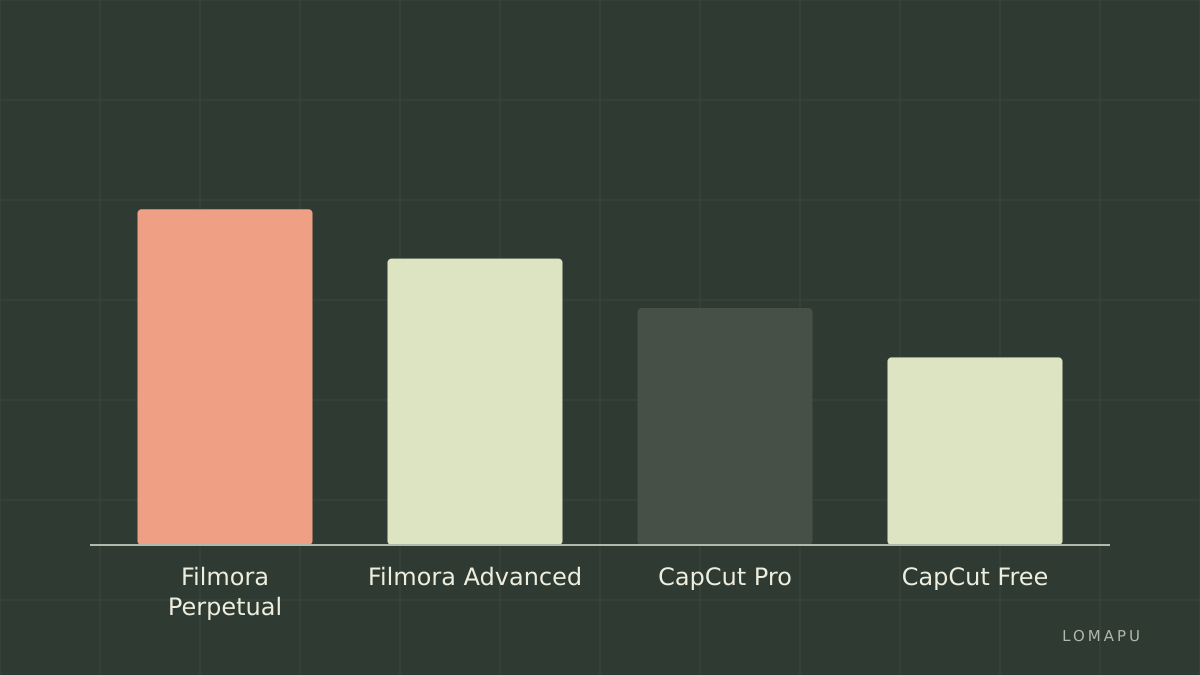
Indicative US price | Basic US$49.99 per year; Advanced US$59.99 per year; Perpetual US$79.99 one-time | Pro listed at US$19.99 monthly or US$179.99 yearly on CapCut's comparison page |
Licence scope | Basic and Advanced cover Windows and Mac; Perpetual is per device (Windows or Mac) | Account-based across devices |
Desktop apps | Windows, Mac | Windows, Mac |
Mobile apps | iOS, Android, iPad | iOS, Android, tablet |
Web editor | Limited | Yes, no credit card required |
Export resolution | Up to 4K on desktop | Up to 8K on both free and Pro according to CapCut |
What paying removes | Watermark; unlocks full asset library and cloud | Premium templates, effects, fonts and music; adds cloud storage |
Cloud storage | Included with paid plans | Free 1 GB tier discontinued in August 2024; Pro around 1 TB |
AI credits | Advanced: 1,000 credits a month; Perpetual: 1,000 one-time | Pro includes monthly AI credits; amount varies by plan |
Ownership model | You can buy a perpetual licence | Subscription only |
The two cells most people misread are the free-tier export rules. Filmora's free version is a genuine trial of the whole editor, but every export is watermarked, so it is for learning, not publishing. CapCut's free tier exports without a forced watermark, but many of the templates, effects and fonts you see while editing are Pro-only, and the app tells you at export time.
Pricing models, not just prices
The numbers in the table will drift; the models will not, and they matter more.
Filmora sells three ways: an annual Basic plan, an annual Advanced plan with a monthly AI credit allowance, and a Perpetual licence that you pay for once. The Perpetual licence covers one platform, so a creator who edits on both a Windows desktop and a MacBook needs the cross-platform annual plan or two perpetual licences. Wondershare also runs frequent promotions, which is why the "regular price" shown on the store page differs from the price you may see.
CapCut has only one paid product for individuals, CapCut Pro, billed monthly or yearly, plus a Teams plan. There is no perpetual option, and the company states it has no fixed global price; you see the number for your region in the app. If you dislike subscriptions on principle, that settles the comparison.
One honest caveat about the recommended tool: Filmora's total cost over several years can exceed CapCut's if you choose the annual plan and keep renewing, and the AI credit allowance on Advanced is a consumable that runs out if you lean on AI features daily. The Perpetual licence avoids the renewal, but it does not include future major versions.
Editing features that separate them
Both editors cover trimming, transitions, titles, colour presets, speed ramps, keyframes and audio ducking. The differences are in emphasis.
Templates and trends. CapCut's template library is tied to short-form platforms and is the fastest way to produce a trending-format clip. Filmora has templates, but its strength is the timeline itself.
Multi-track editing. Filmora's desktop timeline is more comfortable for projects with many layers, B-roll, voiceover and music. CapCut's desktop app has caught up, but its mobile origins show in how it handles long projects.
AI tools. Filmora bundles text-based editing, silence removal, AI copywriting for titles, background removal and audio enhancement, metered by credits on the Advanced plan. CapCut's Pro lists auto captions, background removal, motion tracking, noise reduction and generative tools. Auto captions in particular are excellent in both and are the feature beginners use most.
Ecosystem. Filmora sits inside the wider Wondershare range, so a creator who also needs screen recording or PDF work stays in one account. CapCut sits inside the ByteDance ecosystem, which is a plus for TikTok publishing and a minus if you avoid that platform.
Route for desktop-first creators
You shoot on a camera or mirrorless body, edit at a desk and publish to YouTube or a client.
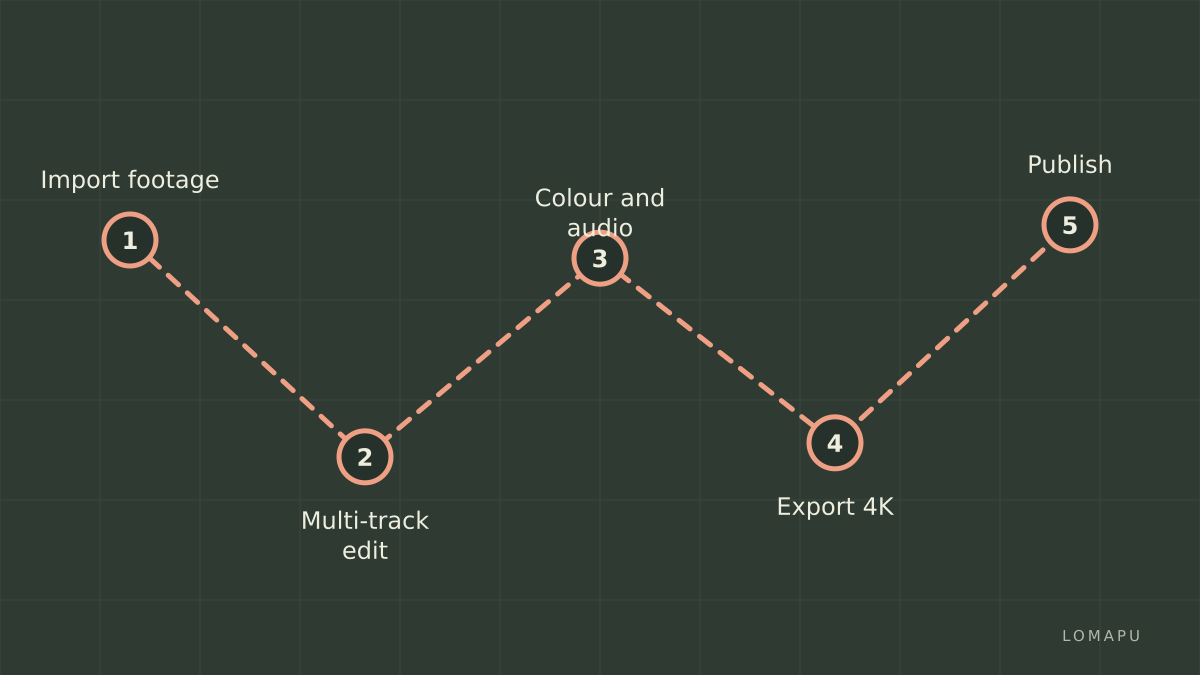
Take Filmora. Start with the free download to learn the timeline, accept that exports will be watermarked, and buy either the Perpetual licence for your main machine or the Advanced plan if you want the monthly AI credits and both platforms. Keep DaVinci Resolve in mind as the no-cost alternative once your projects outgrow a beginner editor; it is free, professional and much steeper to learn.
Route for phone-first creators
You shoot on a phone, edit on the same phone or a tablet, and publish vertical video to TikTok, Reels or Shorts.
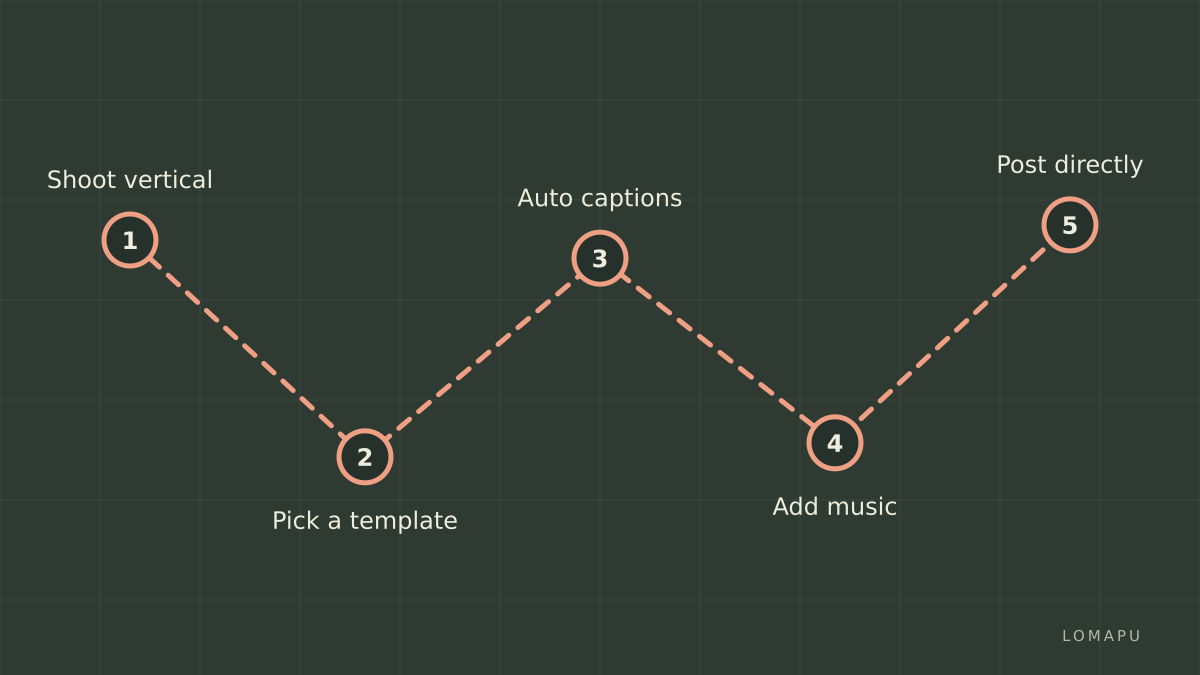
Take CapCut on the free tier for as long as it works, and only subscribe to Pro when you keep hitting locked templates or need cloud storage for projects across devices. The Filmora mobile apps are competent, but the desktop-centred licence model makes less sense if you never sit at a desk.
Decision list
Want to own the software outright: Filmora Perpetual.
Edit on both Windows and Mac: Filmora Basic or Advanced annual plan.
Publish vertical clips fast and free: CapCut free tier.
Need cloud sync between phone and desktop: CapCut Pro.
Long-form projects with many layers: Filmora desktop, or DaVinci Resolve if budget is zero and time is plentiful.
Conclusion
Filmora and CapCut are both good beginner editors, and the master table shows they rarely compete for the same creator. The choice is really about where you edit and how you prefer to pay. Desktop editing and a one-time purchase point to Filmora; phone-first editing and a free start point to CapCut. Check the current price for your region on each vendor's site before buying, since both change promotions often.