Parallels desktop for mac: 5 checks before you buy
Use Parallels Desktop for Mac to run daily Windows apps on macOS with Apple Silicon support and subscription pricing from $79.99/year. A comparison table, scenarios and a step plan.

Some links in this article lead to partner services. If you make a purchase there, the site may receive a commission; this does not affect the price or our assessment.
Use Parallels Desktop for Mac when you need to run Windows-only apps every day on macOS with minimal switching; Parallels supports Apple Silicon and Intel Macs and runs Windows 11 ARM in a virtual machine. Parallels lists Standard at $79.99/year on its pricing page, Pro and Business at higher tiers with more virtual CPUs and RAM options (see sources). Below you get a concise comparison table, decision scenarios, and a step-by-step setup plan you can follow.
In short – key takeaways
Parallels Desktop Standard annual – run Windows apps on macOS with full integration and a $79.99/year entry price (Parallels pricing page).
If you need heavy compilation, choose Parallels Pro annual – more vCPUs and RAM per VM; it suits devs who explain X then Y.
For pure free boot capability on Intel Macs use Boot Camp – free but unavailable on Apple Silicon.
If license cost is the blocker, consider VMware Fusion Player or a Windows cloud PC as alternative; Parallels remains the tight integration option.
Setup plan: allocate required CPU cores, install tools, enable Coherence mode, and snapshot after install; follow the step plan below.
Which Parallels edition fits daily work?
Pick Standard if your daily task is running one to three Windows apps like Excel, legacy accounting software, or a single desktop IDE; the Standard tier lists at $79.99/year and includes coherence mode, printer sharing, and basic VM controls (Parallels pricing page). Choose Pro if you compile code, run containers, or need 8+ vCPUs and more RAM per VM because Pro increases resource limits and adds developer tools. Choose Business if you need centralized license management and advanced security controls. If you only need occasional Windows access for a single app, the Standard plan is the cost-efficient starting point; if CPU-bound, upgrade to Pro.
How does hardware affect the choice?
On Apple Silicon, Parallels runs Windows 11 ARM images; if your Windows app is x86-only, check whether it runs under Windows ARM emulation. If the app requires native x86 performance for heavy workloads, use an Intel Mac with Boot Camp (free) for best native speed, but Boot Camp is not available on Apple Silicon. If you have an M1 or M2 Mac, expect slightly different performance profiles: assign 2–4 vCPUs and 4–8 GB RAM for light daily tasks; assign 6–8 vCPUs and 16+ GB RAM for development VMs. If unsure, start with Standard and a 4 vCPU / 8 GB VM, then increase vCPUs if the app shows CPU-bound behavior.
Comparison table – concrete values and drawbacks
Option | Who it suits | Key number | Main drawback |
|---|---|---|---|
Parallels Desktop Standard (annual) | Daily office apps, single Windows tools | $79.99/year (Parallels pricing page) | Subscription cost if you prefer one-time purchases |
Parallels Desktop Pro (annual) | Developers, heavy multitasking | Higher annual price with increased vCPU/RAM limits (see pricing page) | Higher cost and complexity |
Boot Camp (Intel Macs) | Users needing native Windows speed | Free on Intel Macs | Not available on Apple Silicon; requires reboot |
VMware Fusion Player | Hobby users wanting a free personal license | Free for personal use (vendor terms vary) | Less macOS integration than Parallels |
The Parallels rows link to the product for quick checking: Parallels Desktop Standard annual – run Windows apps on macOS.
How to decide based on your daily scenario?
If your task is a single legacy app used for data entry five days a week, choose Parallels Standard and assign 4 GB RAM and 2 vCPUs; enable shared folders and coherence mode so the app appears on your macOS desktop. If your task is compiling code daily or running local servers, choose Parallels Pro and allocate at least 6 vCPUs and 16 GB RAM; use snapshots before risky changes. If your task is only occasional testing of Windows behavior, consider a time-limited cloud Windows machine or VMware Fusion Player to avoid subscription cost. Decision rule: if you need integration (shared clipboard, drag-and-drop), choose Parallels; if you need raw native performance and have Intel hardware, choose Boot Camp.
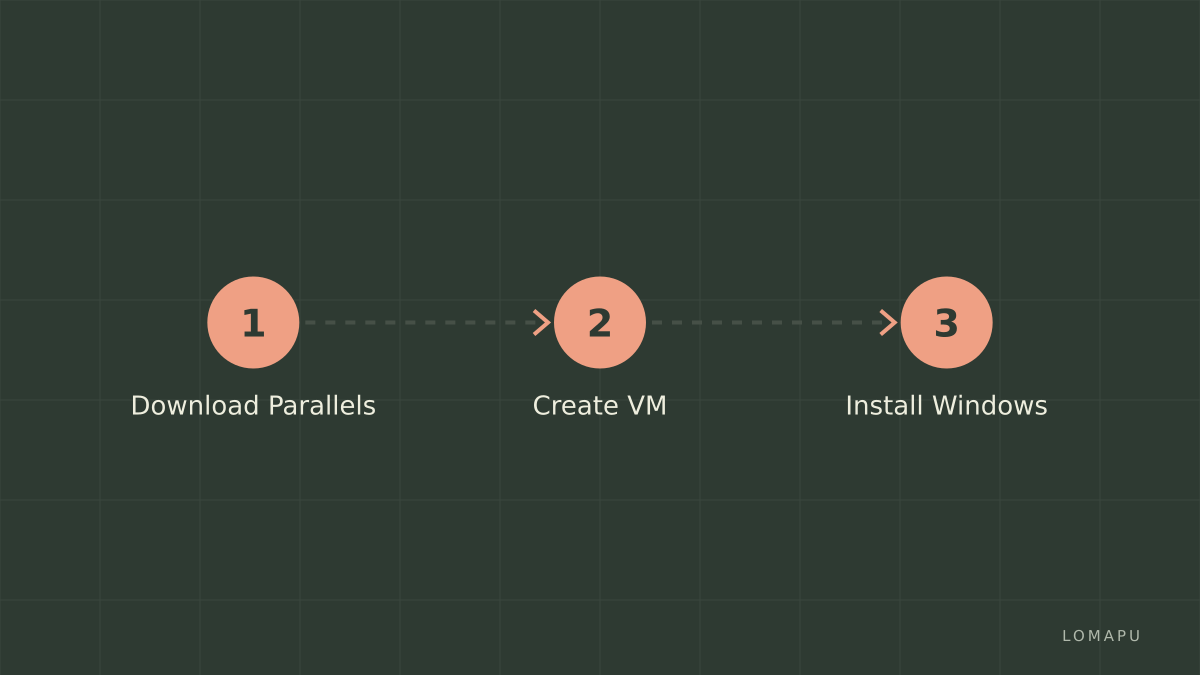
Step plan – install and configure Parallels for a daily workflow
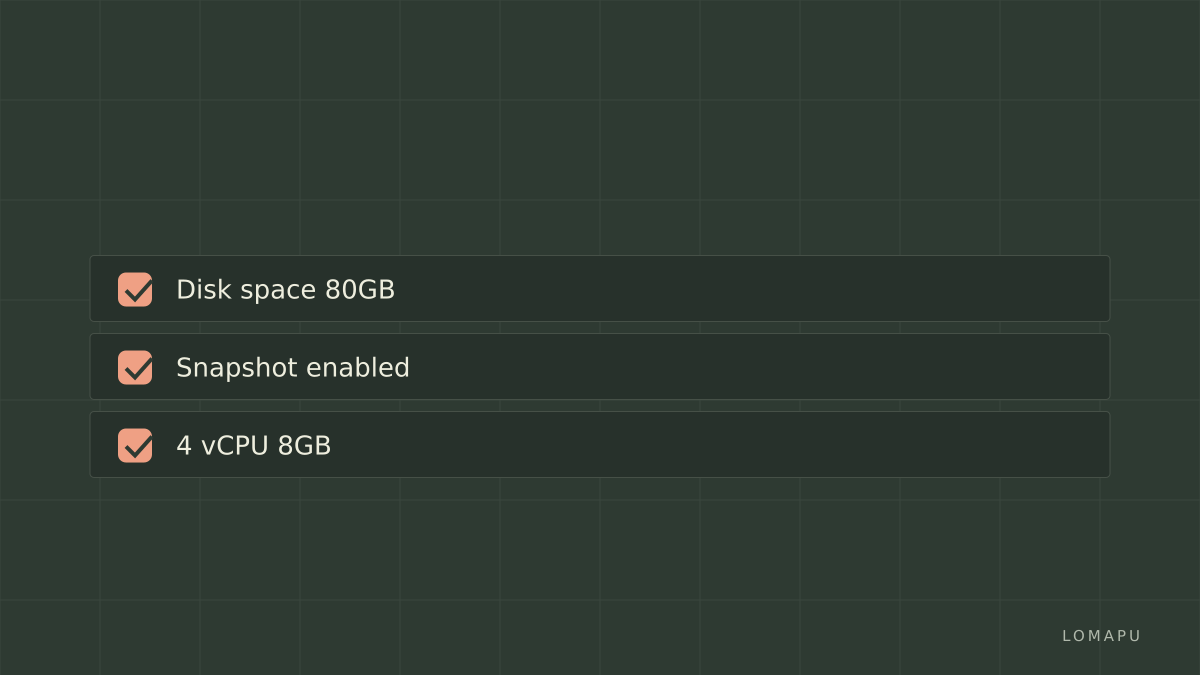
Check system: macOS version compatible and free disk space; reserve 80+ GB for a Windows 11 VM image.
Buy and download the chosen Parallels plan: Parallels Desktop Standard annual – run Windows apps on macOS.
Create VM: allocate 4 vCPUs and 8 GB RAM for office tasks or 6+ vCPUs and 16+ GB RAM for development.
Install Windows 11 ARM or x86 image as appropriate; enable coherence mode for seamless app use.
Configure backups: enable automatic snapshots and set a weekly snapshot schedule.
Test core app, check printing, file sharing, and clipboard; if performance lag, increase vCPUs or RAM and reboot the VM.
What common traps should you avoid?
Do not assume Apple Silicon runs every Windows app identically; verify app compatibility under Windows 11 ARM or use an Intel Mac for native x86. Do not under-provision RAM or CPU for multitasking VMs; that creates worse performance than a lightly sized VM. Do not skip snapshots before system changes; without snapshots you may lose configuration quickly. One limitation of Parallels is the subscription model for full features; an alternative without subscription is VMware Fusion Player (personal license options).
FAQ
Q: Does Parallels Desktop for Mac run on M1 and M2 Macs? A: Yes, Parallels supports Apple Silicon and runs Windows 11 ARM virtual machines; for compatibility details see the Parallels product page. If your Windows app requires x86 native code, test it under Windows ARM emulation or use an Intel Mac.
Q: How much does Parallels cost? A: Parallels Desktop Standard lists at $79.99/year on the Parallels pricing page; Pro and Business tiers are higher and add resource and management features. Prices and plans are listed on Parallels' pricing page.
Q: Can I run heavy development tools in Parallels? A: Yes with the Pro tier; allocate more vCPUs and RAM and use Pro's developer features. For extreme native performance, a Boot Camp setup on Intel hardware delivers better raw CPU access.
Q: Will my printers and USB devices work inside the VM? A: Most USB devices and printers are supported via Parallels device passthrough and printer sharing; if a device requires a vendor driver tied to hardware access it may need additional configuration.
Q: Is Parallels the only option for running Windows apps on a Mac? A: No. Boot Camp (Intel-only) and VMware Fusion are valid alternatives; Parallels focuses on macOS integration and ease of switching.
Decision rule: If you need daily integrated Windows apps and prefer quick switching without rebooting, pick Parallels Desktop Standard (annual) and start with 4 vCPUs and 8 GB RAM; upgrade to Pro only if you encounter CPU or RAM limits. Parallels Desktop Standard annual – run Windows apps on macOS.
Sources
https://www.parallels.com/products/desktop/pricing/
https://www.parallels.com/products/desktop/
https://www.parallels.com/blogs/ras/what-is-parallels-desktop-for-mac/